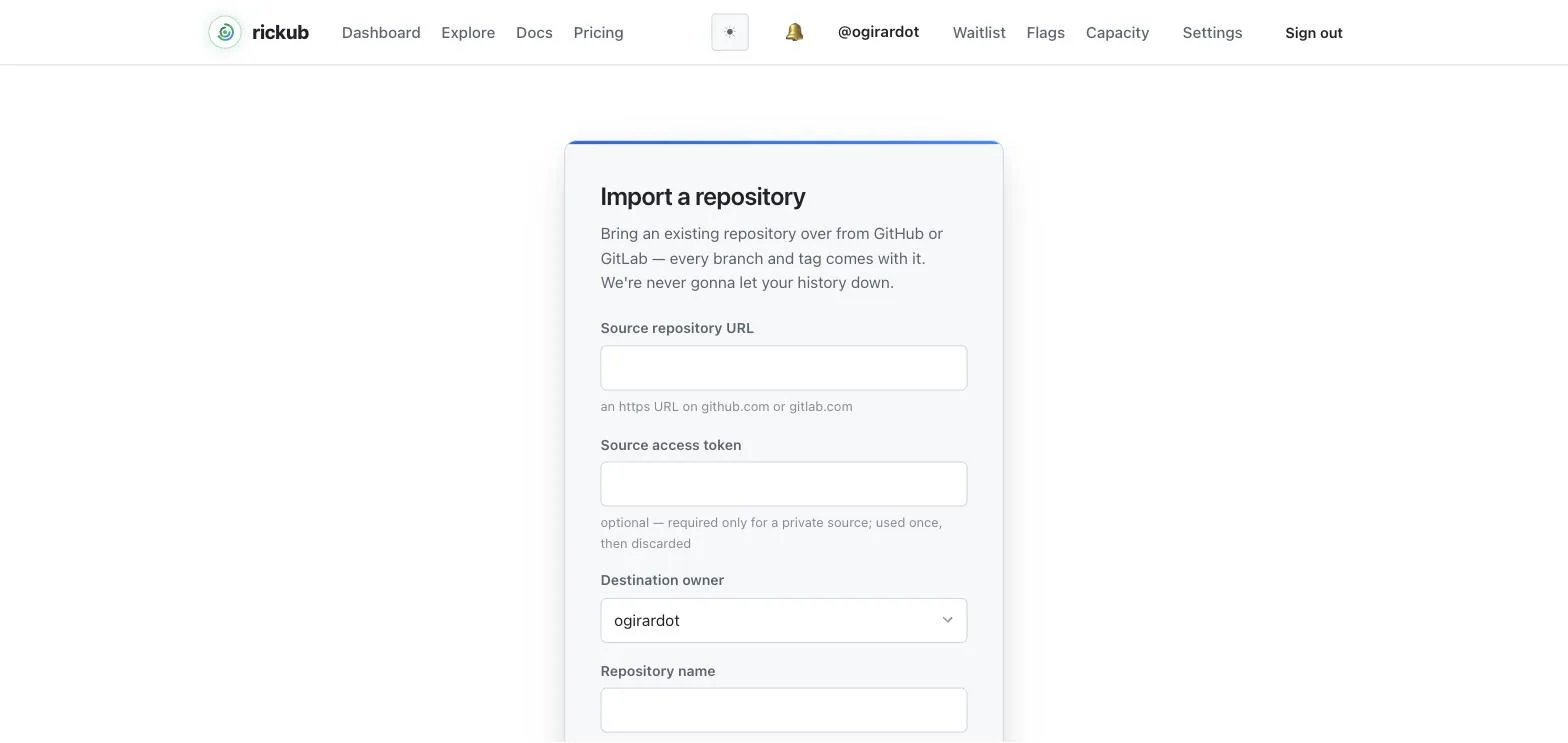
Import a repository
Bring an existing repository over from GitHub or GitLab — every branch and tag, and from GitHub its issues, pull requests, releases and milestones too.
Start an import
Go to New → Import a repository, paste the source repository's URL, choose the destination owner, a name, and a visibility, then start the import. rickub clones every branch and tag, then imports the source's issues, pull requests, milestones and releases.
The import runs in the background. The status page updates itself and shows a summary when it finishes — for example, "Imported 39 issues, 17 pull requests, 28 comments."
What comes across
From GitHub:
- The git repository — every branch and tag, with full history.
- Issues and pull requests, with their comments, labels, assignees, and state (open / closed / merged).
- Milestones, with their due dates and open/closed state, linked to the issues and pull requests that were in them.
- Releases, with their notes, pre-release flags and assets — an imported release attaches to the tag the git mirror already brought over, so nothing is tagged twice.
- Original numbers and dates are preserved, so links like
#123keep pointing at the right thing. - Original authors (and assignees) are kept as placeholder accounts — a login like
octocatbecomes the handlegithub-octocat— so every issue, PR, release, and comment stays attributed to whoever wrote it.
From GitLab, only the git repository imports today; see Importing from GitLab below.
Wikis and reactions aren't imported yet. Attachments in issue and pull-request bodies keep their original links.
Importing from GitHub
Use the repository's web URL as the source, for example https://github.com/owner/repo.
Public repositories
A public repository needs no token to import. GitHub does, however, limit unauthenticated API use to 60 requests per hour, so a repository with a lot of issues or pull requests may not finish in one go. Supplying a token raises the limit to 5,000 requests per hour — recommended for anything but the smallest repositories.
Private repositories
A private repository requires a personal access token. Paste it into the Source access token field on the import form. The token is used only for the import and is discarded the moment it finishes — rickub never stores it.
Which token, which scopes
Fine-grained token (recommended) — grant read-only access to just the source repository:
- Contents: Read-only — the git history.
- Issues: Read-only.
- Pull requests: Read-only.
- Metadata: Read-only — always required.
Classic token — a private repository needs the repo scope; a public-only import needs just public_repo.
Create a token at GitHub → Settings → Developer settings → Personal access tokens. Scope it to just the repository you're importing, and delete it once the import is done.
Importing from GitLab
Use the project's URL as the source, for example https://gitlab.com/group/project. The git repository — every branch and tag — imports today.
Issues and merge requests aren't imported from GitLab yet — only the git repository comes across. The import's status page says so when it finishes; issues, merge requests, milestones and releases will follow.
Token & scopes
A public project's git repository imports without a token. A private project needs a personal, project, or group access token with:
read_repository— clone the git repository.read_api— read issues and merge requests (used once that import lands).
Paste it into the Source access token field. As with GitHub, it is used once and then discarded.
Create a token at GitLab → User settings → Access tokens, or a Project/Group access token scoped to just the project.
Re-running an import
Imports match each item to its source, so retrying an interrupted or partially-failed import won't create duplicate issues, pull requests, comments, milestones, releases, or assets — it simply fills in what's missing.