Authentication
How you prove who you are to rickub — in the browser, over git, and from scripts.
Sessions
Signing in on the website creates a secure session cookie. That session is what authorizes you in the UI; it doesn't work for git or the API, which use tokens and keys instead. Lost access to the account, or think someone else has it? See Account recovery — what a password reset revokes and when to use it.
Personal access tokens
A personal access token (PAT) authenticates git over HTTPS and every API and CLI request. Create one under Settings → Access tokens, copy it immediately (it's shown only once), and use it as the password when git prompts, or as a bearer token for the API. Every rickub token starts with rickub_pat_.
Use the token as the password (with your handle as the username) — that's the recommended setup. For tools with GitHub-style muscle memory, rickub also accepts the token in the username field with an empty password.
Each token has one of two access levels: Full access — clone, push, and mutate through the API and MCP — or Read-only, which can clone and fetch and make read-only API/MCP calls but can never push or change anything. Pick the narrowest level a task needs.
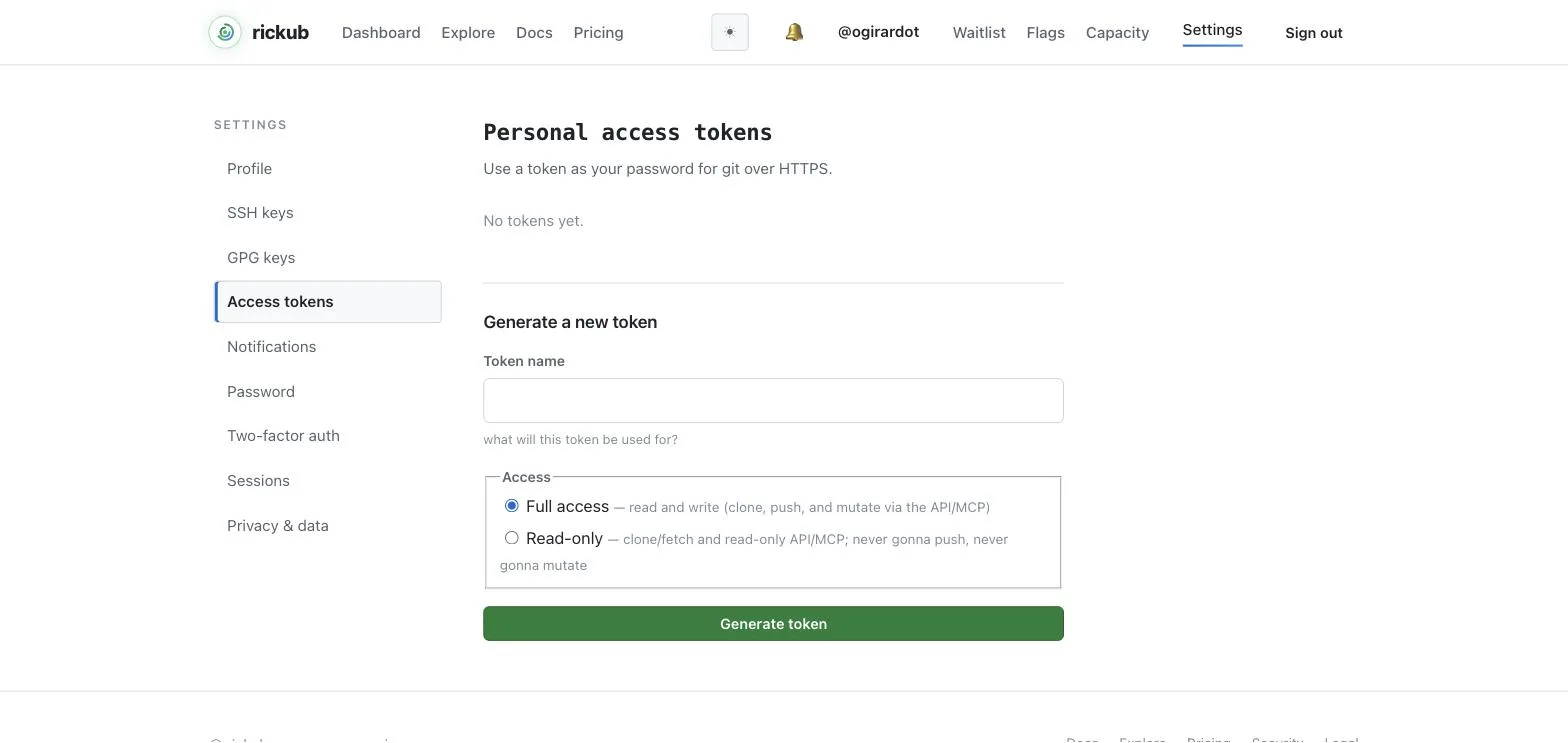
A token is shown once, at creation. Store it safely — if you lose it, delete it and create a new one. Revoke tokens you no longer use.
SSH keys
To use git over SSH, register your public key under Settings → SSH keys. Generate a key if you don't have one, then add the .pub file's contents:
ssh-keygen -t ed25519 -C "you@example.com"
cat ~/.ssh/id_ed25519.pub   # paste this into Settings → SSH keys
When you first connect to rickub.com over SSH, verify the host key: its fingerprint (ed25519) is SHA256:iycHnxEyq0Q7uyVpB7JlznP0G7JrTPXLYRcAU5CSLhc. To pin it, ssh-keyscan -t ed25519 rickub.com >> ~/.ssh/known_hosts — and check the printed fingerprint matches first. On a network that blocks port 22, ssh-keyscan -p 443 -t ed25519 ssh.rickub.com pins the same key.
Two-factor authentication
Add a second factor to your sign-in from Settings → Two-factor auth. It uses a standard authenticator app (TOTP); once it's on, signing in on the website asks for a one-time code — or a recovery code — in addition to your password.
SSO for organizations
Organizations on a plan that includes it can connect single sign-on. rickub uses OpenID Connect (OIDC): members can sign in through the organization's identity provider. Owners configure SSO from the organization's Security settings.
By default SSO is an additional sign-in method, not a gate: members can still sign in with a password, and personal access tokens keep working. Once a domain is verified, owners can turn on enforcement from the same settings page: accessing that organization's repositories, teams and settings then requires completing an SSO sign-in per browser session, and personal access tokens are refused for its resources. Password sign-in itself is never blocked — an account can always reach everything outside the enforcing organization, and its owners can turn enforcement back off. An administrator of a rickub deployment can also enforce SSO deployment-wide — for every organization with a connected identity provider — with the sso_force_enforced flag in the admin console.